
Online, LAN and local options · Match availability varies by region and time
Just Volleyball online options
The released game supports online matches alongside offline practice and local multiplayer. Formats range from 1v1 to 6v6. Choose a team size that suits the people joining your session.
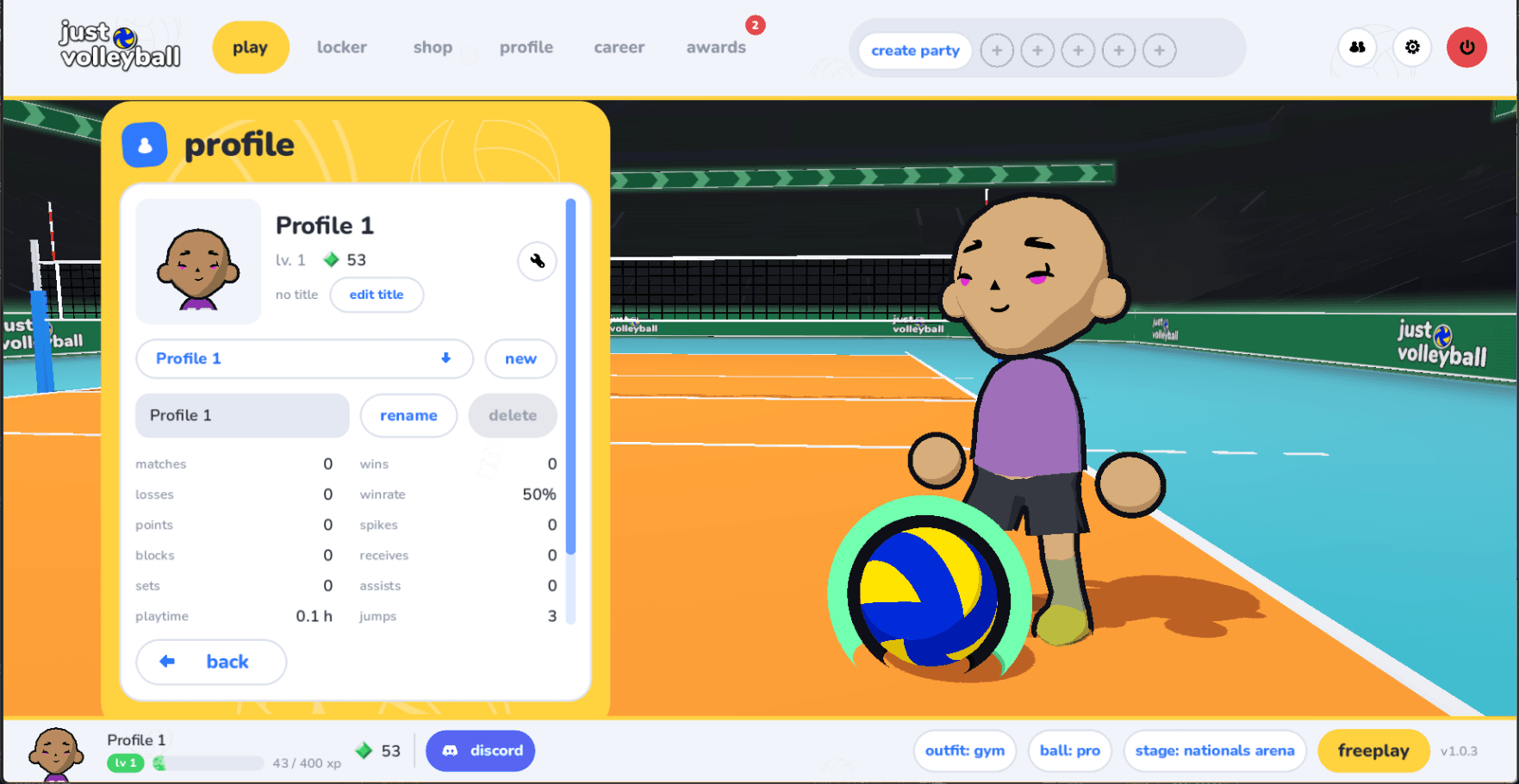
Quickplay searches for a match. The server browser lets you choose a listed lobby. A private group can use party and lobby options to organize a session and configure its rules.
How to play Just Volleyball with friends
Agree on the host and match format before sending invitations. Everyone should finish updates and use a compatible edition. The game menu includes party creation to organize players before selecting a match.
- Launch compatible updated game clients.
- Create a party or host a custom lobby through the current Play menu.
- Use the available game or Steam invitation controls to bring friends into the session.
- Choose teams, court, rules and CPU fill for empty positions.
- Check that everyone has joined and is ready before starting.
Quickplay and queue times
Region, time of day and selected formats influence who is available to match. Selecting several formats does not guarantee a faster queue when the local pool is small.
The November 22 announcement described ranked mode as development work. Check Updates for published changes before planning a ranked session, because an announced target is not evidence that its queue has opened.
Custom lobbies for mixed-skill groups
Hosts can configure modifiers including player collision, ball indicators and CPU fill. Use a helpful lobby description so joining players understand whether the session is for learning or competitive practice.
Give new players time to test serves and receives. Short matches let the host adjust teams and rules between rounds. For public games, use the server browser to look for a suitable session rather than assuming every quickplay match will fit the group.
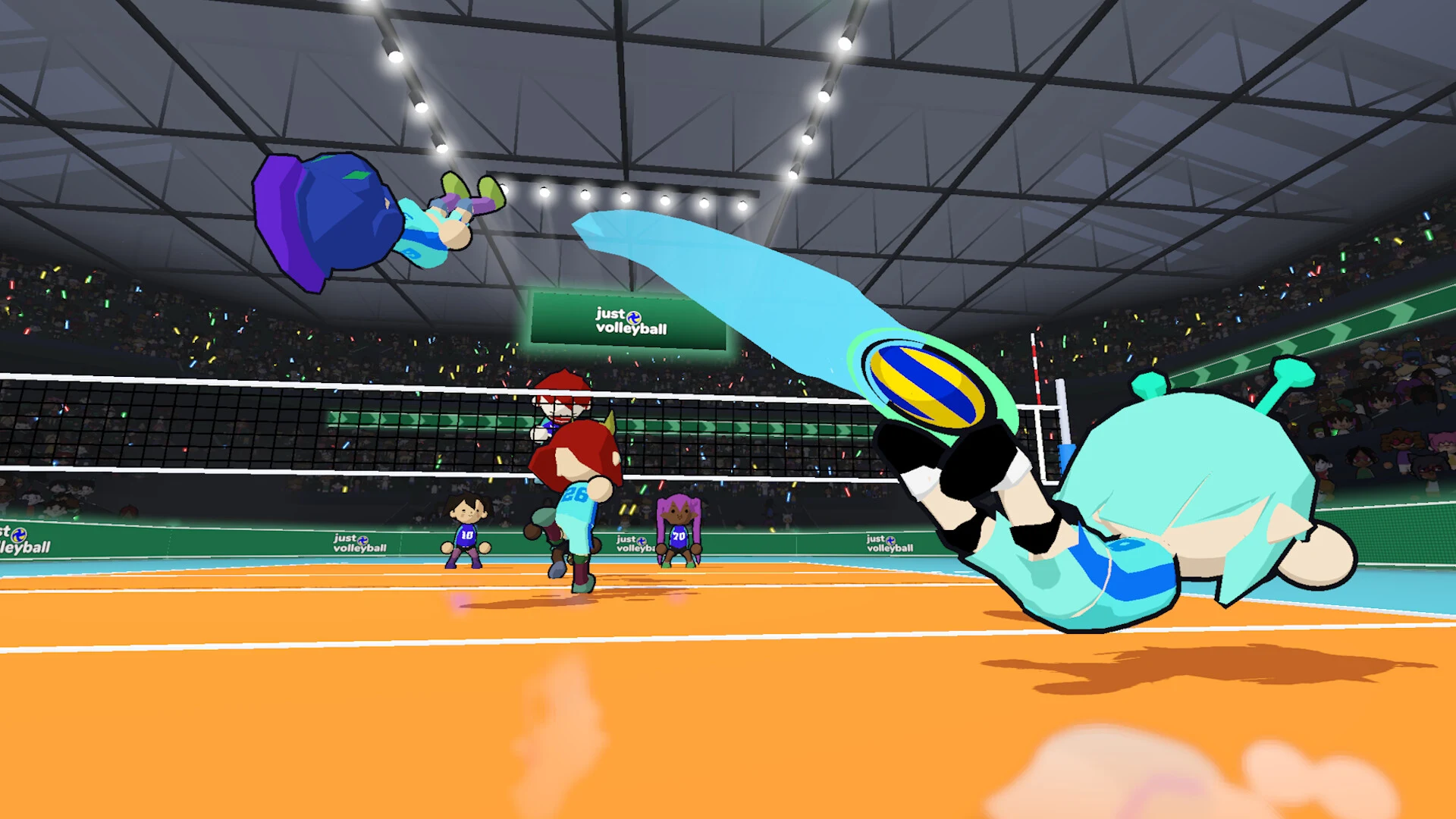
LAN, local play and Remote Play Together
Steam lists LAN and shared or split-screen multiplayer, plus Remote Play Together. Choose the connection method before arranging a session and test each local input device.
LAN players need the intended network and compatible versions. Local players follow the game’s join prompts. The local setup supports up to four local players, which is separate from selecting a team format such as 6v6.
Remote Play Together streams a supported local session from the host. Guests use Steam’s invitation and input-sharing options; this does not give them an independent full-game license or a separate online client.
A friend cannot find or join the lobby
Start with version and visibility checks. A private invitation and a public server search follow different paths. Confirm that the lobby still has room and refresh the list after changing filters.
- Check that everyone finished Steam updates and is using a compatible edition.
- Check visibility, invitations, region and server-browser filters.
- Refresh the browser or ask the host to resend an invitation.
- For LAN, check the network and the game’s firewall permission.
- If one host repeatedly fails, try another group member as host and compare the result.
Muting, reporting and finishing matches
During a match, open Pause → Players & Teams and select a player to mute them. The developer says this hides their chat and distracting avatar content. Use the game’s reporting options for disruptive behavior.
Version 1.0.3 removed the quick-match matchmaking penalty. That note did not say every loss-recording or match-result rule was removed. Finish the match properly when possible and read the current update notes before relying on an old rule.
Choose the connection setup for your group
Start with where everyone is playing and how many PCs are available. Friends in different homes generally need an online session. A room with several PCs can test LAN. A shared local game uses the player-join and device options on one host PC.
Remote Play Together adds another arrangement: the host runs a supported local session and streams it to guests. Test that arrangement before planning a competitive game, because the host’s performance and both sides’ connections affect the result.
| Your setup | Option to test | Check before starting |
|---|---|---|
| Separate homes, individual clients | Online lobby | Compatible editions, updates and invitations. |
| Several PCs on one network | LAN | Network visibility and firewall permission. |
| Several players at one PC | Local multiplayer | Input devices, profiles and local-player capacity. |
| Remote guest joining a host’s local game | Remote Play Together | Steam invitation, stream quality and shared inputs. |
Organize the party before the match
Choose one person to host and tell the group which route you are using. A party invitation, an in-game lobby invitation and a Remote Play invitation are not interchangeable. State whether each friend should launch their own client or accept a streamed local session.
Agree on team size, CPU fill and the intended pace before the first serve. If only a few people are present, choose a format that lets everyone participate regularly. A large lobby with unclear teams can make a simple input or visibility issue look like a matchmaking failure.
Keep the first round short. Confirm that each person can move, aim and make contact, then adjust the session. When teaching a new player, give them a clear responsibility for a few rallies rather than changing roles after every missed ball.
Connection quality and host checks
A session can be technically connected while still feeling inconsistent. Compare the same basic contact locally and online. If local movement is responsive but an online session is unstable, check the host and network before replacing your control layout.
Pause large downloads and compare a wired connection when available. If one host produces a poor session for everyone, try another group member as host. Compare the result under similar conditions so you can identify whether the problem follows the host or one joining player.
For LAN, confirm the PCs are on the intended network rather than assuming proximity is enough. Check the game’s firewall permission and the host’s network settings. Leave security changes limited to what is needed for the game and test discovery again after each relevant change.
Remote Play Together session walkthrough
The host should launch a game that supports Remote Play Together, open Steam’s friend invitation options and invite the guest to the local session. The guest accepts, then the host checks which controller or shared keyboard inputs they can use.
The guest is seeing the host’s running game. This is why the local-player setup still matters and why a guest does not need to join the same session again through the public server browser. Check that each participant is assigned an intended input before starting a round.
If the streamed session feels delayed, check connection quality and Steam’s available streaming settings. Reduce unrelated background activity and test a short local round. If it is still unsuitable for your group, use an independent online session for players who own compatible clients.
- Host a supported local session on the owner’s PC.
- Invite the guest through Steam Remote Play Together.
- Have the guest accept and check the streamed game appears.
- Assign player inputs and verify each person controls the intended player.
- Play a short test round before committing to a longer match.
Troubleshooting by the point of failure
Describe the failure precisely when comparing with friends: the lobby is missing, the invite fails, the player joins but cannot control, or the match starts but feels unstable. Those symptoms call for different checks.
After a successful test, keep the working setup for the next session. Note the host, connection route and device assignments. Repeating a known setup is easier than rebuilding the party, lobby and input layout from scratch every time.
| Symptom | First checks |
|---|---|
| Lobby absent | Visibility, filters, version and whether the host is still in that lobby. |
| Invitation fails | Current session, compatible edition and a fresh invitation. |
| Joined but no control | Assigned player profile, input device and Steam sharing permissions. |
| LAN discovery fails | Same network, host visibility and the game’s firewall permission. |
| Only streamed play feels delayed | Host performance, connection and streaming settings. |
| All players have a poor session | Background downloads and comparison with another host. |
Frequently asked questions
Does Just Volleyball have online multiplayer?
Yes. Online team formats range from 1v1 to 6v6.
Does 6v6 mean twelve local players on one PC?
No. Team format and local input capacity are separate. The local setup supports up to four players.
Can console friends join?
The confirmed release is Windows PC through Steam. A console crossplay arrangement is not established here.